Showing posts with label iphone. Show all posts

Wednesday, October 28, 2015

Harness Siri to Capture Your Thoughts and Seamlessly Put Them Into Your GTD System

If you experiment with Siri you will find her both super helpful and terribly insufficient.  I both love and hate Siri for a number of reasons.  Let’s talk about the Siri love.

What I love about Siri for my GTD Productive Lifestyle

As a highly mobile person, I need someone to follow me around, sit in my car while I drive, walk beside me while stroll along, run beside me while I jog and basically capture and transcribe my shallow thoughts and deep thoughts throughout my daily routine.
No one in my house has volunteer for this job and I believe the salary that I’d need to pay someone to be my personal assistant is beyond my current budget constraints.  Therefore I have found Siri to be suitable pseudo personal assistant (in part).

Siri and the First Step of Getting Things Done: Capture Everything

Searching the web to find the perfect Getting Things Done capture application for the mobile device is a simple task because there are many to choose from.  But the daunting task is find the right one that really works for a particular user and routine.
As a busy professional I want technology to be my seamless and effortless servant in my Getting Things Done process architecture.  For the majority of GTD implementers the biggest challenge with Getting Things Done architecture is the Review step.  The second biggest issue is capturing the content in as few inboxes as possible so that you don’t wear yourself out trying to find all the things that you’ve captured.  The intention of making capture seamless and creating fewer inboxes is to make Review easier. 


Therefore GTD implementation would ultimately be easier from start to finish by automating capture as much as possible.  You know that every little simplification in life creates a little space for breathing, so let’s save a little time and reduce complexity in capture.

Siri and Simplification

This is where Siri comes in.  She does an OK job at capturing voice and turning that voice into text for future processing in your Getting Things Done implementation.
Remember that David Allen says the calendar is golden and should always be followed rigorously. your calendar is your highest priority list, so this list will always be a pillar in your system.  So the “Create Appointment” command to Siri is the pathway to organize your time sensitive events.  I often mix capture with process when it comes to the calendar.  In other words, when I realize I have something to schedule, I do it right then and there.  The alternative is to add an item to your inbox so that you will then add an event to your calendar later. I'll use paper when I'm in a meeting, but I use voice commands when walking, running or driving.
If you don’t instantly add something to your calendar in a capture/process moment, then you’ll just want to capture for future processing. Future processing might occur in the next 15 minutes or next 24 hours, but the important thing is to capture seamlessly and Siri does this through “Take Note” command or “Reminder me" command.
Prior to iOS 9.0 IO was a big fan iOS notes because I could combine it with IFTTT to synchronize my personal notes into one single tool.   Notes were great because you could dictate to Siri to capture a note and then an IFTTT rule would run to synchronize the notes with Evernote or Trello or a variety of other tools.  Here’s the weird part. After iOS 9.0, the synchronization only works with hand typed notes but does not work with dictated notes.  Wow that is frustrating.  In iOS 9.0 apple made Notes similar to Evernote by allowing notes to include fancy fonts and pictures, but apple broke the most effective tool that I know which is synchronizing with a GTD inbox such as Evernote or Trello or OmniFocus.

Reminders to the Rescue

As a technology aficionado and mobile app early adopter, I would not give up easily on the voice capture feature because I desperately needed to take notes with voice while on the run or driving.
Through some experimentation I determined that iOS Reminders work almost exactly like Notes.  In some cases even better than notes for my GTD implementation.  Here’s how it work.
Instead of “Take Note…” say “Make Reminder…” or “Remind me to check out Smart Passive Income podcast episode 172” (BTW, that's my current favorite episode).  Siri creates the reminder.  That’s OK, but it’s not in my GTD workflow system (e.g. Evernote, Trello, Omnifocus, etc).  What we need is a mechanism to put every captured thought or action into our regular system.  Let’s say the system we use is Trello (my favorite at this time).  You need an assistant to seamless transfer items from Reminders to Trello, Evernote or something else.

IF THIS THEN THAT Completes the Loop

http:/ifttt.comIf This Then That (IFTTT) is an incredible service that can help you connect various systems in your life. Technology has not aspired to the level of Star Trek where I can ask the computer to create an entire life management system and connect all the pieces together, but IFTTT is a serious step forward.  A core component of IFTTT is the recipe and within these recipes a person can literally plug together an amazing amount of disparate systems.  IFTTT is truly amazing in terms of the permutations of functionality that is achievable.
To close the loop I used IFTTT to synchronize my iOS reminders with a specific Trello Board and specific list.  If you were using Evernote, you would select a specific folder to drop in new reminders.
IFTTT runs in the background as intervals you decide and collects your Reminders into the target application.  In the meantime, you can continue to use Evernote to capture typed notes or you can convert all your typing and dictation to Reminders and only use Evernote for picture capture.  I find Evernote to be couple taps longer than Reminders, so I just use Reminders for everything except photo capture.

Review Your Inbox

After fixing up the IFTTT recipe and capturing your notes verbally or hand typed, you have a collection of things to process. This collection of stuff is in one place instead of possibly two or three.
Please try Reminders audio capture and let me know your experience?
Please subscribe to this blog and keep productivity improvements flowing into your life.

Monday, October 5, 2015

Which Traffic App Will Give You the Best Commute Experience

Traffic...traffic...traffic.  In suburban spaces there is no escape from the traffic, so it’s time to figure out how live with it.  One of best things about the information age is the amount of data at our disposal.  Try to forget about big brother knowing too much about you and glory in the fact that we have real time traffic information that can be put to use. I’m going to evaluate 3 traffic apps and see how they benefit your commute.

The Contenders

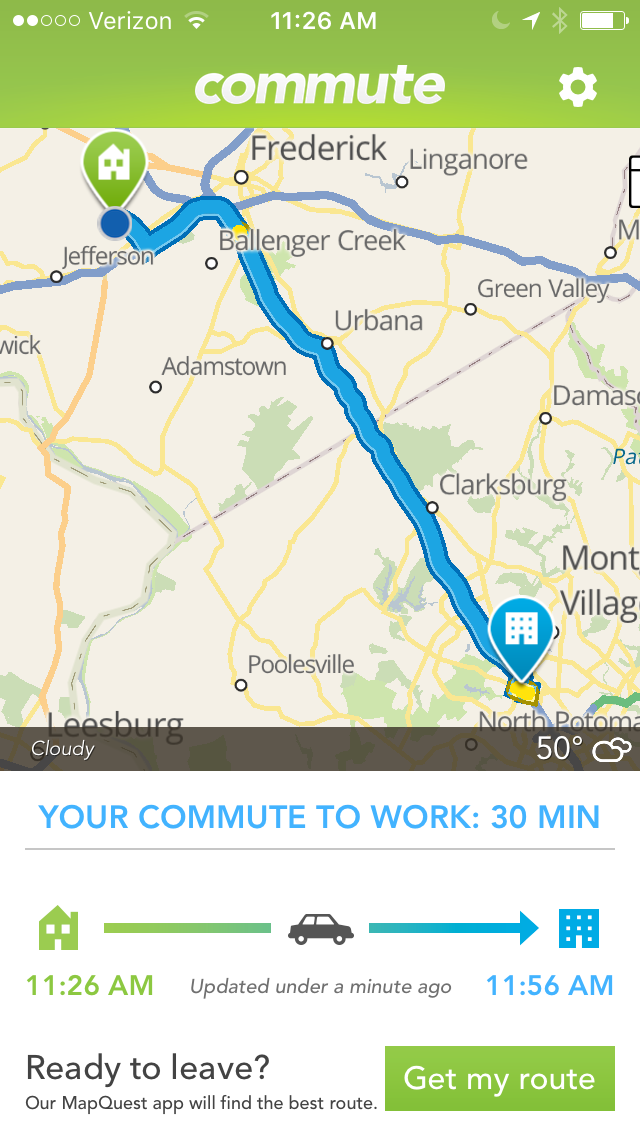
Commute by MapQuest is a simple app for understanding the total time from “Home” to “Work” (and the reverse) both at departure time and throughout the drive and shows your real-time location on a route map during your travels.

wazeicon.jpg

Waze by Waze Mobile (a Google company) is comprehensive app with directions, alerts and real-time alternatives supported by a community of fellow drivers that provide insight into road conditions and alternative routes both as you drive and through a map editing application.

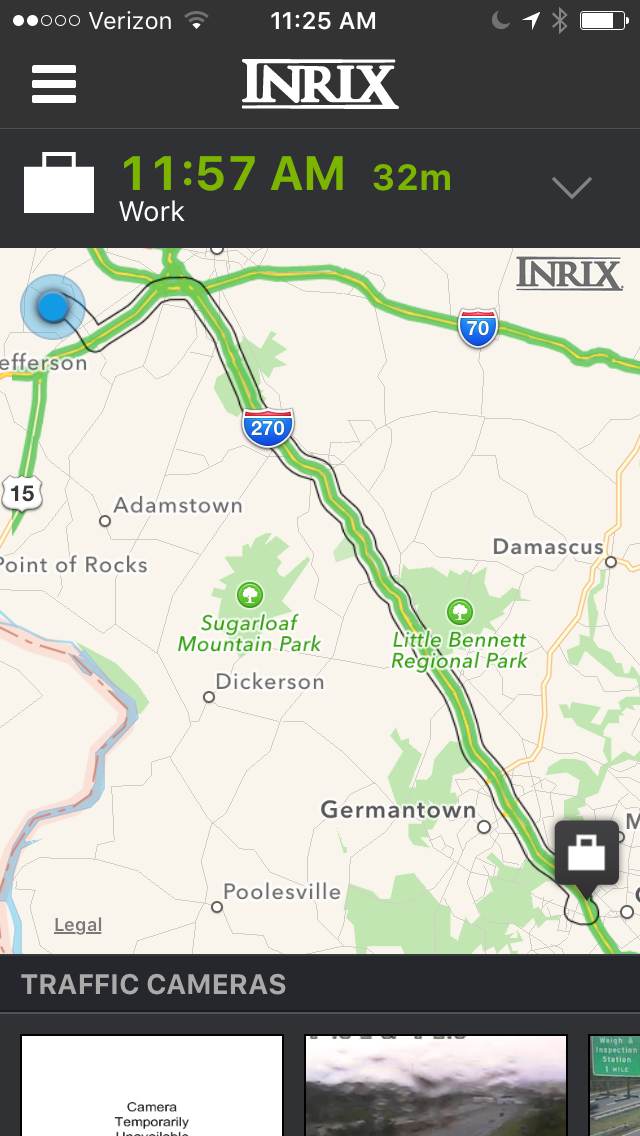
INRIX Traffic by INRIX is an app that is backed by a very big transportation research company.  The app itself provides commuting time forecasting and real-time alternatives routes with forecast arrival for each option and displays your real-time location on a route map for the duration of your commute.

The Criteria


  • Ease of Configuration - Based on single work site location, how easy is the app to configure
  • Richness of Features - How much does the app offer in terms of functionality
  • Pre Departure Info - How well does the app alerted me about traffic conditions before I get into my car
  • Easy of Departure - How easy is it to get rolling
  • En Route Info - How well does the app indicate the current situation and give alternatives
  • Hands Free Safety - How distracting is this app

Ease of Configuration

Commute is the simplest app to configure: Just type in address for work and home and the times that you usually depart for work and leave for home.


Waze is a more complicated app altogether and does require creation of user id, input of work and home locations and then you can get crazy with many other options if you so desire.


INRIX is interesting because it requires the home and work locations as well, but then you can pre-program different routes and give them names.  The route planning takes a little effort because you to place waypoints and INRIX fills in the route.  You must carefully pick the waypoints if you want to travel specific roads on your alternative routes.  Alternatives routes can be very nice as you’ll see later.

Richness of Features

Waze is number one in features because it includes such incredible detail in terms of real time road conditions, traffic cameras, location of police and the capability to post alerts as you drive (more on that later). Waze doesn’t use the overview route map, which in my opinion is a super tool to know the condition of the whole route.


INRIX has some great features with respect to commute time forecasting and forecasting alternative routes.


Commute is dirt simple. It gives you a forecast of your commute and tracks progress of your drive with updated arrival time every minute or so.

Pre Departure Info

INRIX provides a notification of your commute time at a time you specify.  So you can know before you go. I get an alert at 30 minutes before I depart for work.


Commute can provide you with a quick route information if you open the app and wait a couple seconds for the map to update and provide the commute forecast.


Waze does not provide any pre departure info and you must touch through a few menus to get the commute forecast … Waze is my least favorite for getting pre departure info.

Ease of Departure

After you get in your car you want a fast departure.


When you launch the Commute the app immediately comes up with your route forecast and begins tracking your progress and updates as you go.  Only 1 single action to get everything.


INRIX usually requires that you select your destination before it provides a forecast.


Waze also requires that you select a location and it requires the highest number of interactions with your mobile device among the three apps.

En Route Info

Waze takes the award for most information provided during your route.  You get voice driving (if you want), voice alerts for road hazards, real-time updates on traffic changes, real-time alternatives routes with driving directions.


INRIX provides a great tabbed view of alternative routes right at the top of the application. And each route has forecast arrival time so you can quickly see which one might be the best.


Commute basically tells you one route and sometimes indicates an alternative.  Unfortunately the alternative route is sometime indistinguishable from the main route due to the limited size of the screen on the mobile phone. And in the event the alternative route is clearly visible, it’s not obvious where you should turn to get on the new route because all navigation cues are provided on the route map.

Hands Free Safety

Commute is the safest app to use in my opinion because it does not offer options that require the user to interact.


INRIX offers the on road options of checking a new route by selected a good sized tab at the top of the app.  


Waze is crazy flexibly and I’ve caught myself coming up close on the person in front of me because I was distracted while reporting heavy traffic. The real time info of waze does amaze the commuter, however the actual number of interactions with a mobile device is very high.  To create a traffic alert in Waze requires 4 interactions with the app. That is at minimum probably 2 seconds and possibly up to 4 seconds of driver distraction.  If you are travelling in traffic and someone stops in front of you while you were entering an alert, you just ate up all your margin between your and the car in front of you. Additionally, if you want to confirm a road hazard, it’s one interaction, but still a bit of a distraction. Entering and confirming traffic notifications are optional of course, so safety is really up to the discretion of the driver.  Note that the value of the app and service does necessitate a high engagement with the community.  Update: I will be trying the voice commands aspect of Waze over the next few commutes to see how that impacts safety.  


Summary

If you want it simple and informative Commute is likely the app for you.


If you want to analyze pre-recorded routes for your commute and you want pre-flight information, then INRIX could be a good solution


If you are a commute road warrior and you want to try new routes on the fly, Waze will suit you fine.  


Below is a summary of the criteria and rank for the apps. Experiment and see what works for you.  I’m currently using all three of them and comparing their features side by side.


Ease of Configuration
Richness of Features
Pre Departure Info
Ease of Departure
En Route Info
Hands Free Safety
Commute
1
3
2
1
3
1
Waze
2
1
3
3
1
3
INRIX
3
2
1
2
2
2

If you have any questions or thoughts on these apps, please send me an e-mail.

Monday, September 21, 2015

How to Get a Higher Education While you Commute

I’ve looked at the statistics for commuting duration and decided that I can get the equivalent of a master's degree while I commute to work and back home.  Master Degree programs vary widely in terms of credit hours, but according to my research an average master's degree usually requires about 36 Credit Hours.  Credit hours are measured as Contact Hours with a professor and then you add another 3 hours of homework.  That’s 4 hours or your personal time per credit hour.  Now multiply by 15 weeks (length of the semester) and your grand total for master’s degree is 2160 hours.


Now that we know how much a typical master degree costs in terms of hours, how long will it take me to get the equivalent education hours while I drive down the road? I’m glad you asked…


Let’s assume that you start your education at the moment you jump in the car and stop when you arrive at work.  We’ll assume the same scenario for the trip from work to home.  


Daily 1 Way Commute in Minutes
Years to Get Master's Degree
30
8.6
45
5.8
60
4.3
90
2.9
120
2.2

Based on the numbers in the table above it could take you anywhere from a little over 2 year to 8 ½ years to get the equivalent hours of education for a master’s degree.   You might be asking yourself a few questions…


  • Where am I going to find a college professor to ride along with me for the duration of my commute?
  • And how will I convince him or her to show up at my house right when I leave for work?
  • Can he or she find a way back to the college or university so I don’t have to drop them off?
  • How much is this going to cost me for the convenience and quality of this education?


Fortunately you don’t need to find that special college professor.  You’ve probably already hear of Audible.com by Amazon.  Audible is a subscription service that holds a vast amount of material for every kind of reader/listener.


For our use case of getting the equivalent of a master’s degree, I researched audible’s collection of “The Great Courses” audio books. I determined that Audible has approximately 400 titles “The Great Courses Titles” that sum to 6,300 hours of educational listening. NOTE: This is ONLY “The Great Courses” material which is a fraction of the content on Audible. Many of these titles are recorded by University Professors who hold Ph.D’s is the subject of interest.  FANTASTIC...you just found the professor that will ride along with you every day.


Caveats include
  • No face time with a real professor
  • No office hours
  • No homework
  • No accreditation for all your work
  • No group projects that are core for many master's degree programs


Nevertheless, you can learn a ton and apply a amazing amount of what you learn by consistently listening day after day.


Check out Audible.com.  Find some courses of interest from “The Great Course” or other self help or business.  DO NOT get a novel...unless you are pursuing Creative Writing or Literature. You need to be learning on your commute to invest the time.


Please leave comments and let me know about what kind of “Master’s Degree” you would like to get while you drive?


-All The Best, Steve.